Posts

Showing posts with the label Windows 10

How to create a Hyper-V virtual machine
Image
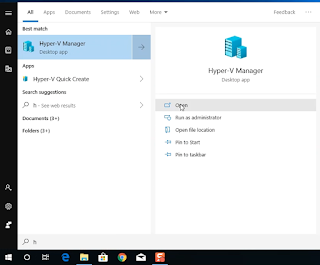
After you enable the Hyper-V on your test machine, you can now create virtual machine. If your Hyper-V is not yet enable, please visit my post here -   How to Enable Hyper-V . To create virtual machine, follow the steps below: Open Hyper-V Manager Right-click on the machine, then Select “New”, then select “Virtual Machine”. A “New Virtual machine wizard” window will show. On the new virtual machine wizard, click “ Next ” On the Specify Name and Location:  Name:  VM Name On Location, check the “Store the virtual machine in a different location” Location:  VM Storage By not checking the “Store the virtual machine in a different location” the VM will be stored on a Default storage.     Then, click “ Next ” On the Specify Generation, choose which type of machine you want to create, then click “ Next ” On the Assign Memory: Input  4026  and  uncheck  “ Use Dynamic Memory for this Virtual Machine ...
How to connect your Hyper-V VM to internet

Image
Hyper-V uses virtual switch, for your VM to communicate to each other, for your VM to communicate to the host and for your VM to be able to access your internet, if you need too. Hyper-V has 3 categories on virtual switch, Internal , Private and External virtual switch.             External virtual switch – is the virtual switch that connect to the physical network.            Internal virtual switch – is use to connect all your VM to communicate to each other and to communicate to host.            Private virtual switch – is used to connect all your VM to communicate to each other, but cannot communicate to the host. For your VM to connect to the internet, you must create an external virtual switch. In creating your virtual switch, you should know, which type of physical network your host has internet connectivity. Are you using wired connection or wireless connection?...

How to enable Hyper-V on Window 10 Machines

Image
If you are trying to create a test environment, you can now use Windows 10 OS to enable Hyper-V and create test VM. Hyper-V can be enabled on these versions of Windows 10: Windows 10 Enterprise Windows 10 Pro Windows 10 Education And hardware requirements are: 64-bit Processor with Second Level Address Translation (SLAT). CPU support for VM Monitor Mode Extension (VT-c on Intel CPU's). Minimum of 4 GB memory. As virtual machines share memory with the Hyper-V host, you will need to provide enough memory to handle the expected virtual workload. For more details about Hyper V requirement you can check it here: MS Hyper-V Requirements Enable the Hyper-V on your machine: Go to Control Panel à Programs à On the Program and Features, click “Turn Windows features on or off” On the “Turn Windows features on or off” windows à Check  Hyper-V and then click “OK” It will automatically apply the changes and wait for it to finish. Yo...