Posts

Showing posts with the label Create Virtual Machine

How to create a Hyper-V virtual machine
Image
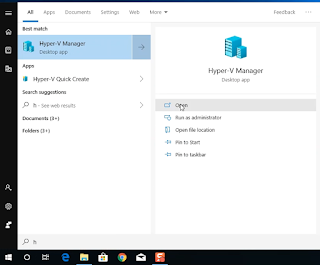
After you enable the Hyper-V on your test machine, you can now create virtual machine. If your Hyper-V is not yet enable, please visit my post here -   How to Enable Hyper-V . To create virtual machine, follow the steps below: Open Hyper-V Manager Right-click on the machine, then Select “New”, then select “Virtual Machine”. A “New Virtual machine wizard” window will show. On the new virtual machine wizard, click “ Next ” On the Specify Name and Location:  Name:  VM Name On Location, check the “Store the virtual machine in a different location” Location:  VM Storage By not checking the “Store the virtual machine in a different location” the VM will be stored on a Default storage.     Then, click “ Next ” On the Specify Generation, choose which type of machine you want to create, then click “ Next ” On the Assign Memory: Input  4026  and  uncheck  “ Use Dynamic Memory for this Virtual Machine ...

How to Install Windows Server on Virtual Machine

Image
After you have created a virtual machine on your test PC, you can install Windows Operating System - Server or Workstation. Make sure that you have the .ISO file for installation. You can download Evaluation version of Microsoft applications  here! To create a VM on Hyper-V, click on this link - Create Hyper-V VM . Installing Windows Server on the VM. To install the Windows Server 2019 Evaluation. Make sure the the .ISO image is already mounted on your VM to start. Right-click on the VM, then click “ Connect ” The VM windows will open, then click “ Start " Once the VM starts, it will automatically load Windows Server 2019 and starts the installation. Windows Setup will start, click “ Next ”, then click “ Install ” Select an operating system you want to install, then click “ Next ” Choose “Desktop Experience” to install the Windows Server GUI version. Accept the License Terms, then click “ Next ”  Choose, which type of instal...